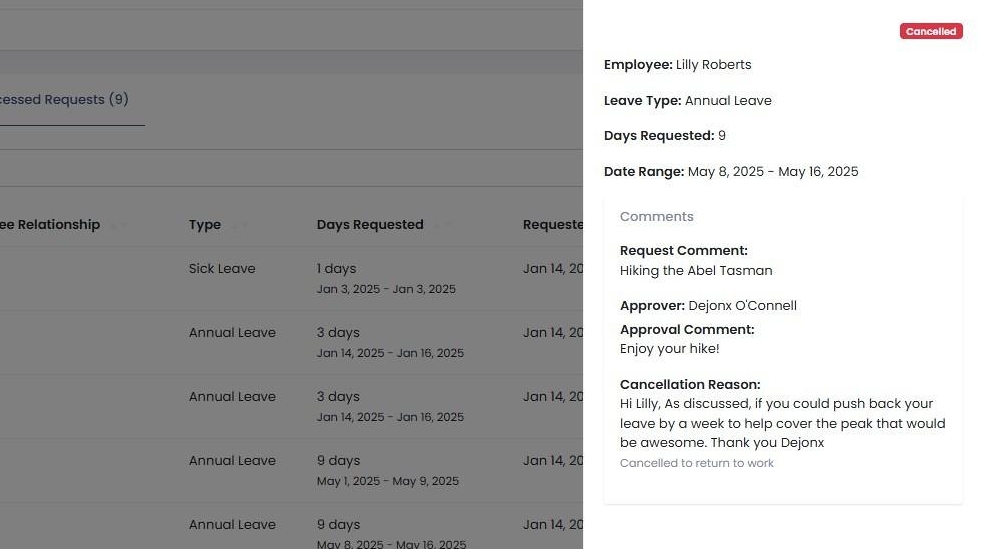
Cancel approved leave
Overview
Canceling approved leave in Rasp requires careful consideration as it can impact pay rules and roster patterns. This guide walks you through the process of canceling approved leave requests.
tip
When you cancel leave in Rasp:
- It can trigger specific pay rules
- Any roster pattern shifts that were removed when the leave was approved will be automatically restored
Cancel a leave request
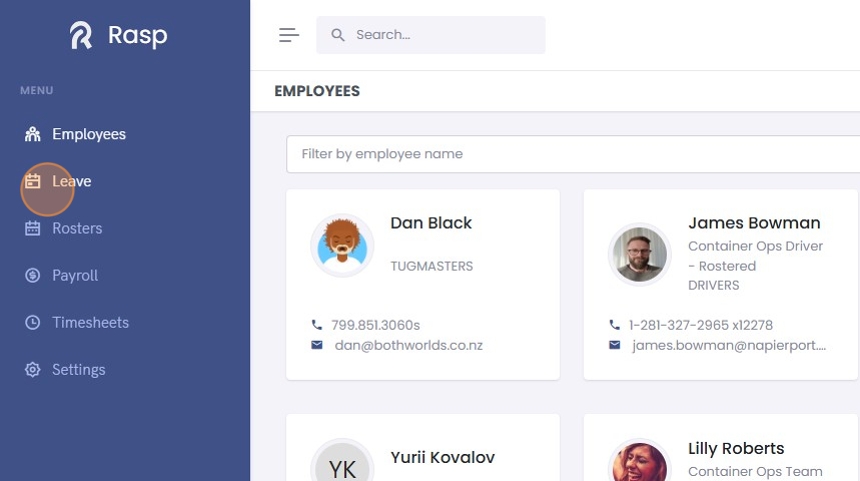
1. Click "Leave" on the navigation panel
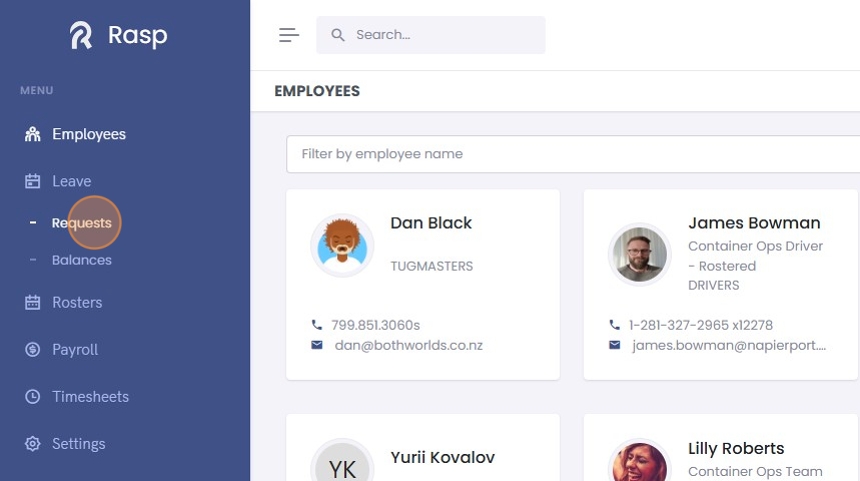
2. Click "Requests"
tip
The visibility of leave requests in the "Leave Requests" table depends on your role and permissions:
| Relationship Column | Description |
|---|---|
| Direct | You are the direct Leave Manager for these employees. |
| Delegated | Another Leave Manager has delegated their duties to you for these employees. |
| Empty | You have "Can Manage Employees" permission, allowing visibility of all leave requests. |
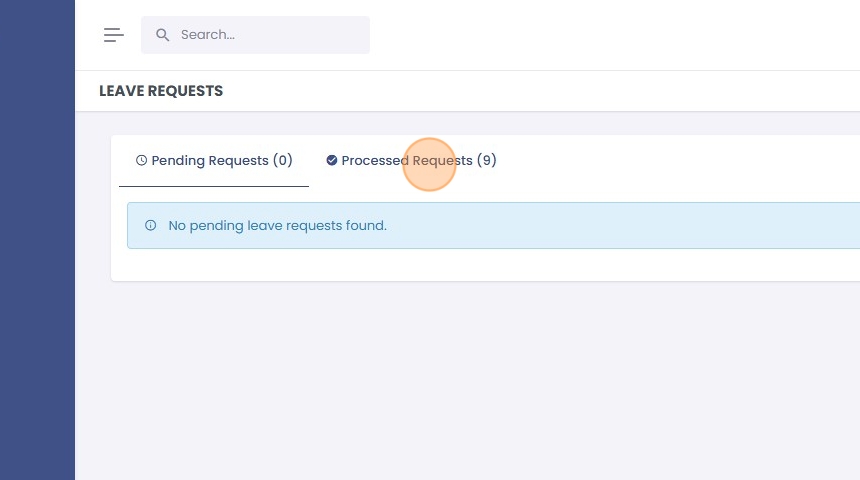
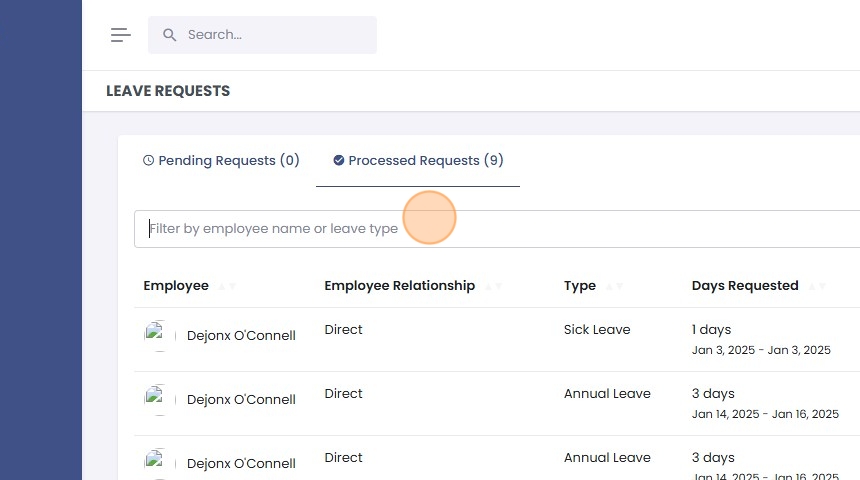
3. Click "Processed Requests"
4. Use the "Filter by employee name or leave type" field to search for the specific request
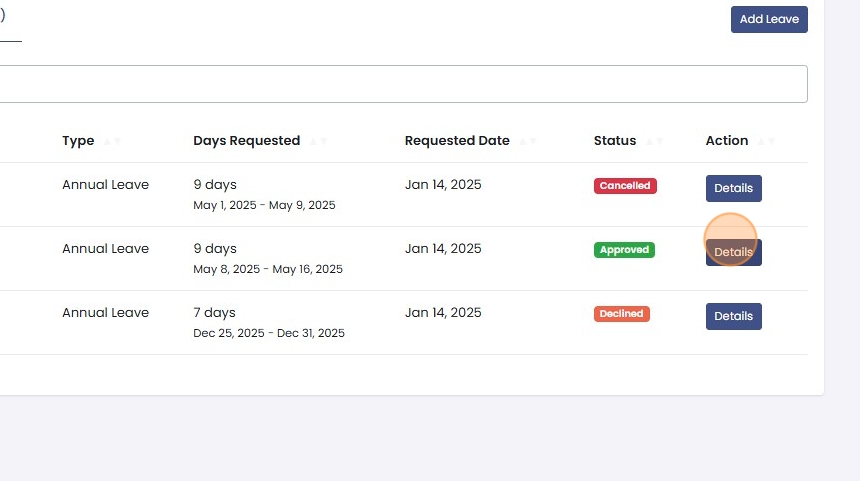
5. Click "Details" on the request you want to cancel
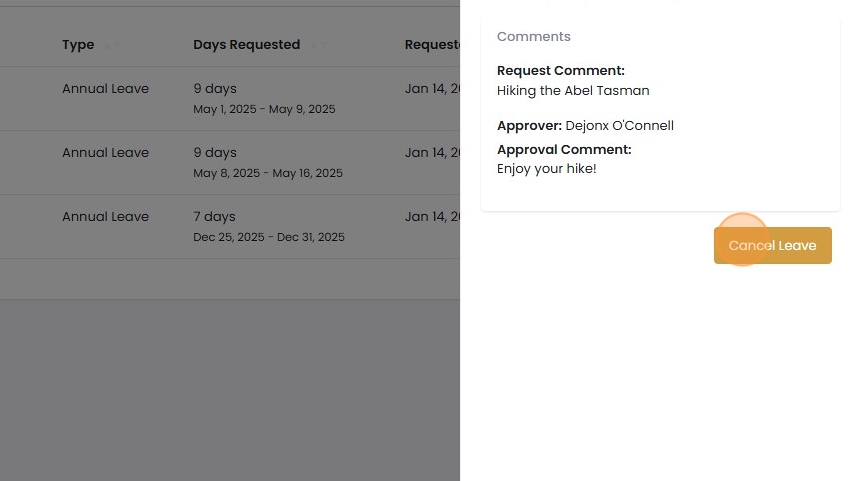
6. Click "Cancel Leave"
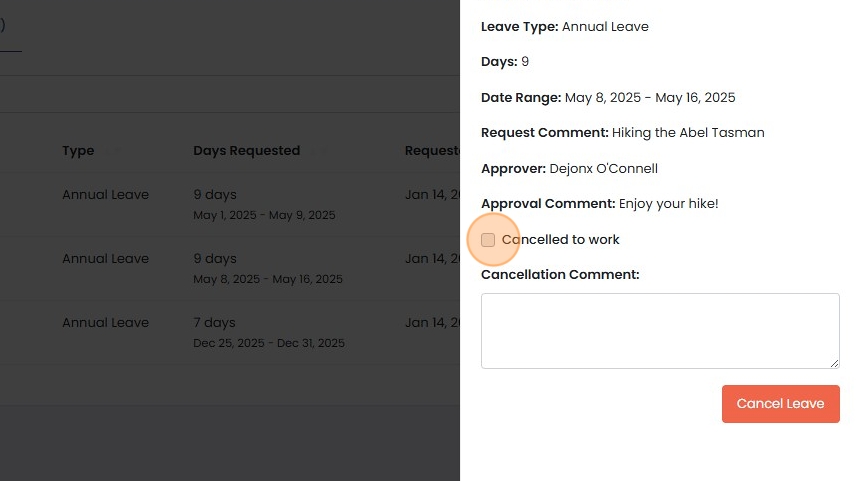
7. Set the "Cancelled to work" field if applicable
warning
The "Cancelled to work" flag can trigger specific pay rules depending on your organisation's configuration settings
8. Add a required comment explaining the cancellation
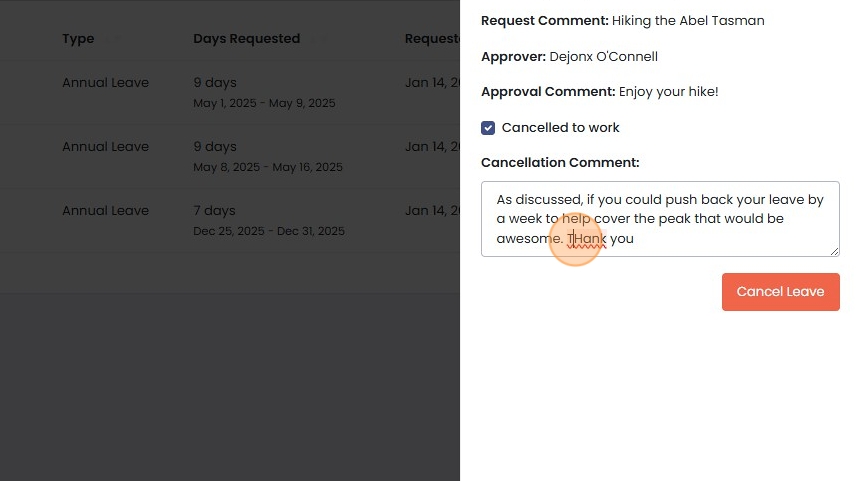
9. Click "Cancel Leave" to complete the cancellation
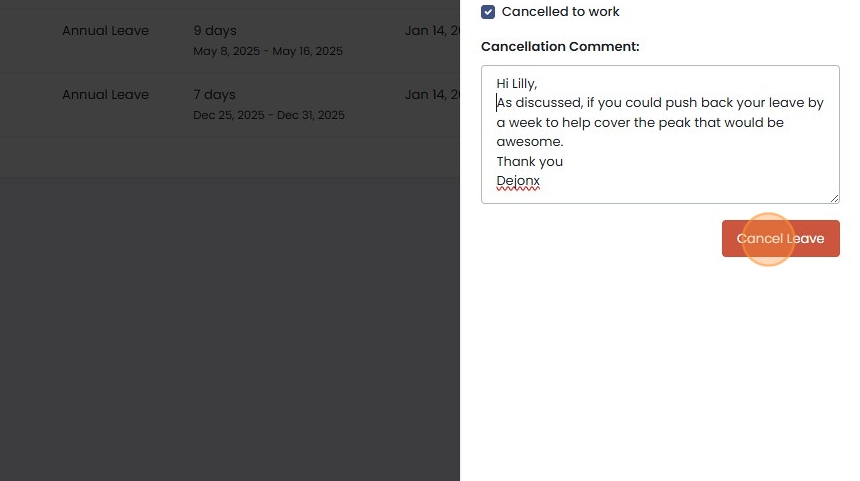
10. You can review the cancelled request details by clicking "Details"