Submit an expense claim
1. Click "Timesheets"

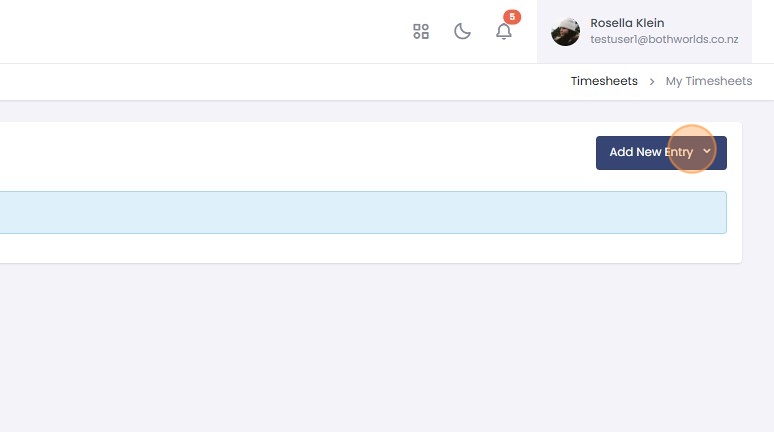
2. Click "Add New Entry"
3. Click "Expense Claim"

4. Enter the details of your expense.

tip
When "Other" is selected as the Category, a "Category Description" must be entered.
5. Use "Upload Receipt" or "Take Photo" to upload an image of your receipt.

6. Click "Submit Claim"

7. The expense will be created and displayed as pending.
8. Click "Details" to view your pending claim.

9. Click the "X" button to close the Expense details.

10. Click "Submit" to submit the claim for approval.

11. The expense is submitted and moves to the "Completed" tab.

12. Click "Completed" to view the submitted claim
