Timesheets
Timecards are automatically generated when a rostered shift commences and can be submitted directly if the shift was worked as scheduled. If there were any deviations from the scheduled shift or if additional details need to be recorded, you have the option to add comments or edit the shift details before submission.
Timecards can also be created manually for unplanned or unrostered work.
How to submit a timecard with no changes
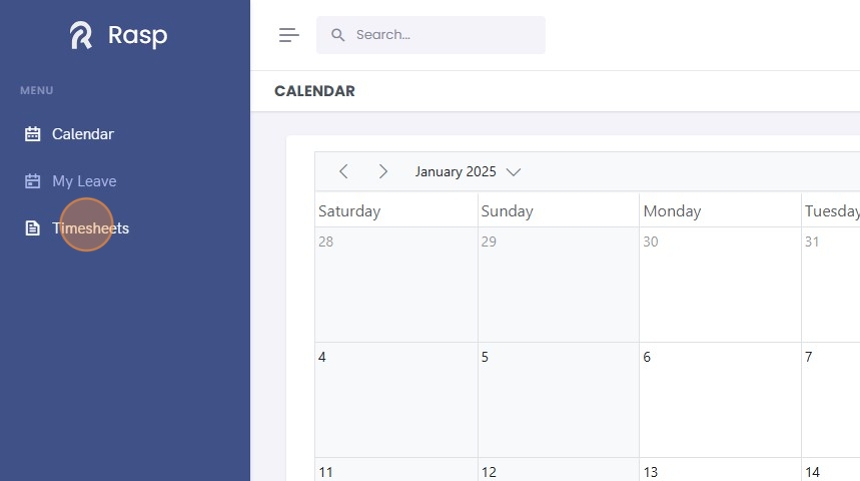
1. Click "Timesheets"

2. The Open tab displays a list of your pending and rejected expenses and timecards.

You can submit directly from the list or you can click details to view the timecard details before submitting. Both options are documented below.
3. Click "Details"

4. If desired add a comment and click "Post Comment"

5. Click "Submit"

6. You can also submit timecards directly from the list view by clicking on "Submit" instead of "Details"

7. Submitted timecards can be viewed by clicking on the "Completed" tab.

Submit a timecard with changes
1. Click "Timesheets"
2. Locate the time card you want to submit and click "Details".

3. Click "Edit"

4. Make change to the primary shift details as required. e.g. if you need to modify the timecard e.g. to extend the worked hours or change the primary location/team/roles etc.

5. Click "Add Work Detail" if you need to log specific roles performed.

The location will default to the location set on the primary details above but can be adjusted if you worked in a different location.
6. Add the Work Details as required.

7. Click "Save"

8. The Actuals card will be displayed under the Planned details.

9. If required, click the "Add a comment" field to add a comment (optional).

10. Click "Post Comment"

11. Click "Submit"

12. The timecard has been submitted and moves to the "Completed" tab.

If the timecard is rejected it will return to the "Open" tab for you to update.
13. Click "Completed" to view submitted timecards.

14.

Submit a timecard for an unplanned shift
This document provides a step-by-step guide on how to submit a timecard for unplanned or unrostered work. Manual timecards are necessary when employees work shifts that were not pre-scheduled. These timecards undergo the same approval process as those submitted for rostered shifts, ensuring consistency in handling all types of work records.
1. Click "Timesheets"

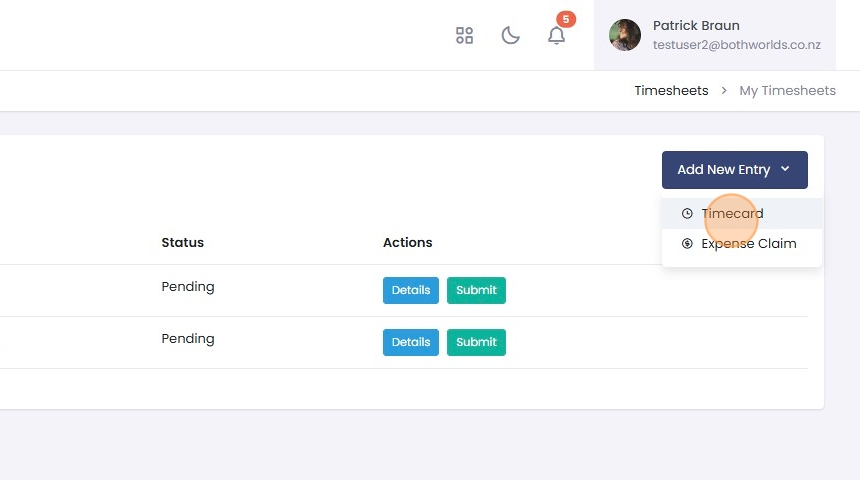
2. Click "Add New Entry"

3. Click "Timecard"
4. Enter the main details of your shift by filling in all the fields.

5. If required click "Add Work Detail" to add additional detail (optional).

:::tip[Work Details can be added to the timecard to call out portions of the shift worked in differnt roles and or locations.] You can add more work details by clicking "Add Work Detail" again. Rows can be removed by clicking on the trash can icon next to the row. :::
6. Click "Save"

7. Locate the timecard created and click "Submit". You can also click "Details" and then "Submit".

8. Click "Details"

9. Click here.

10. Click "Submit"

Submitted timecards are visible on the "Completed" tab.
11. Click "Completed"

12. Click here.
