Expense Categories
Overview
This section provides guidance on managing expense categories within the Rasp system. It covers how to add, edit, and delete expense categories. The expense categories are what diplay for classification on employee expense claims. They can be used in pay rules to map to pay codes.
How to view expense categories
1. Log in and navigate to the Admin App

2. Click "Settings"
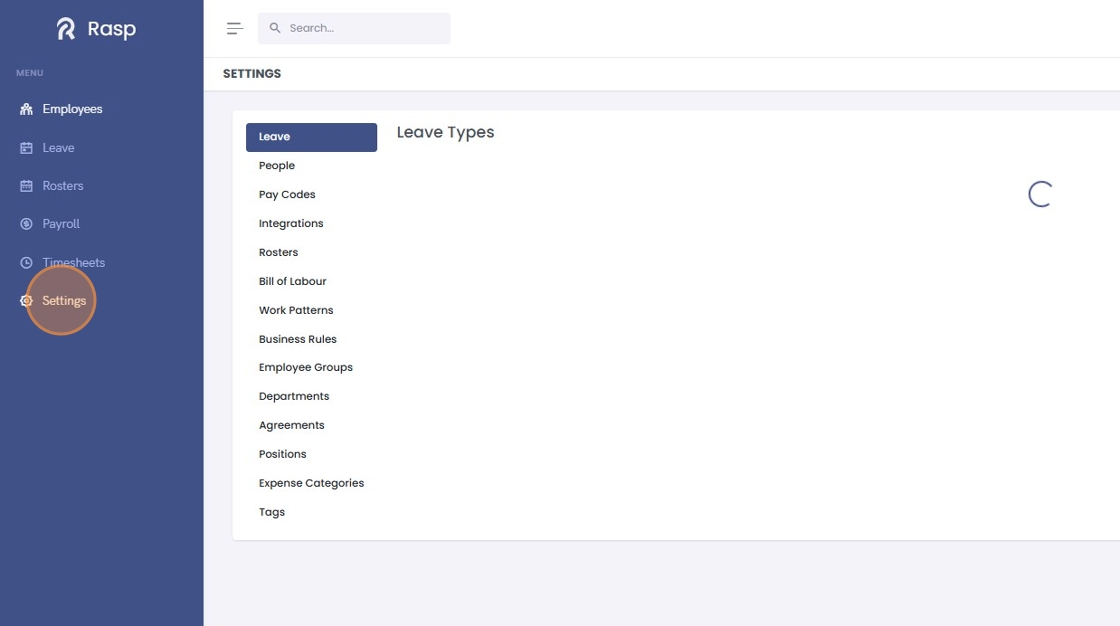
3. Click "Expense Categories"

4. The expense category list is displayed

How to add a new expense category
1. Log in and navigate to the Admin App
2. Click "Settings"
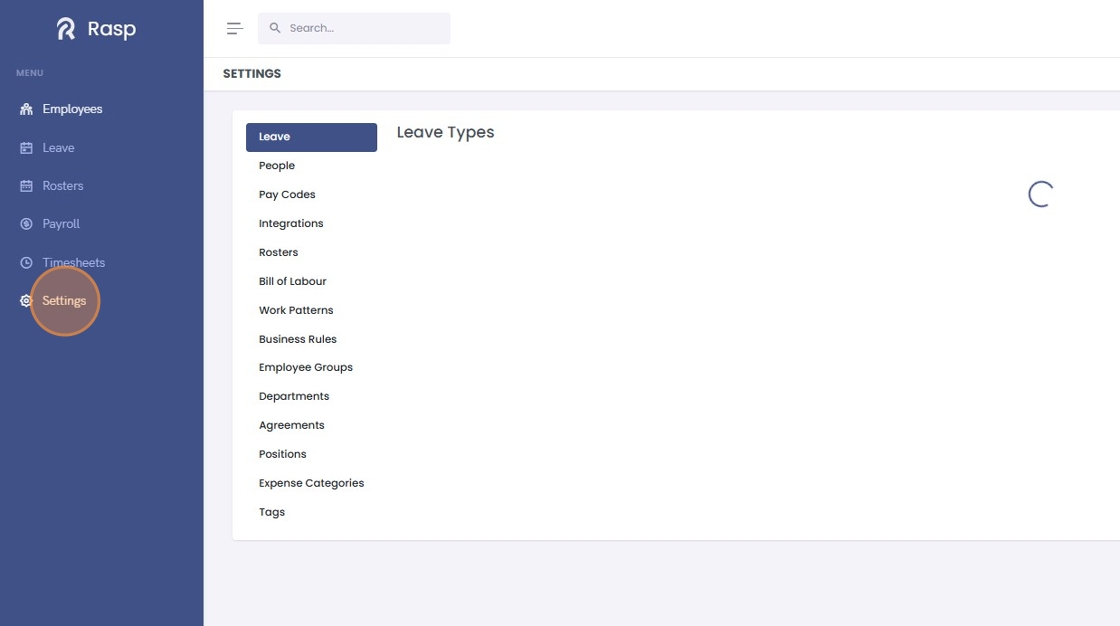
3. Click "Expense Categories"

4. Click "Add Category"

5. Name your expense category and provide a description if desired

6. Click "Save"

7. The new expense category had been added

How to edit an expense category
1. Log in and navigate to the Admin App
2. Click "Settings"

3. Click "Expense Categories"

4. Click "Edit"

5. Modify the name and description as desired

6. Click "Save"

7. Click "Save"

8. The expense category has been added

How to delete an expense category
1. Log in and navigate to the Admin App
2. Click "Settings"
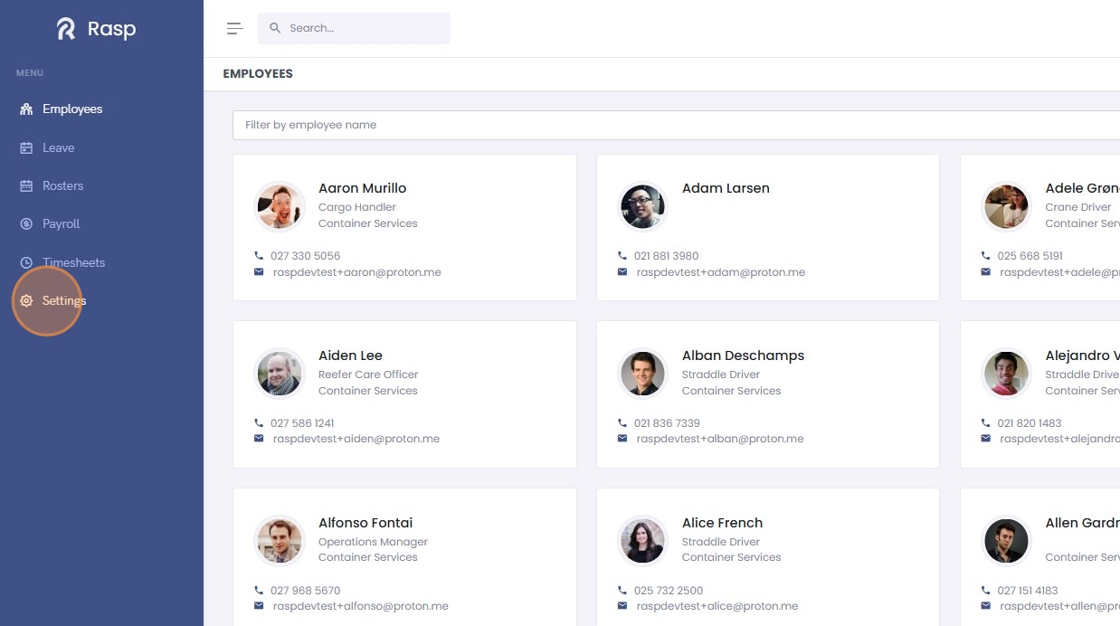
3. Click "Expense Categories"

4. Click "Delete"

5. The expense category has been deleted
