Work Patterns
View Work Patterns
1. Log in and navigate to the Admin App

2. Click "Settings"

3. Click "Work Patterns"

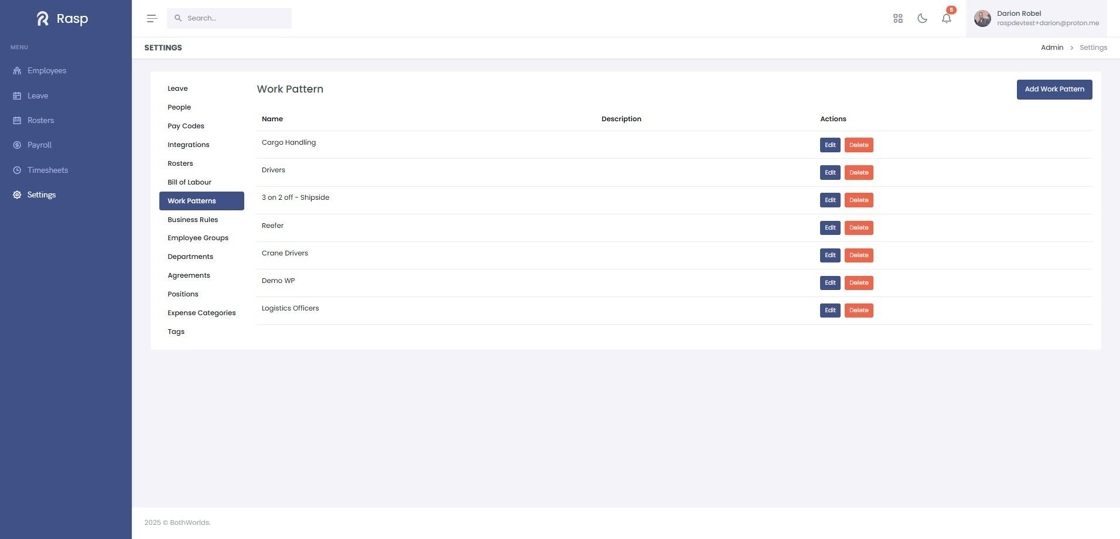
4. The Work Pattern list is displayed.

Add a New Work Pattern
1. Log in and navigate to the Admin App

2. Click "Settings"

3. Click "Work Patterns"

4. Click "Add Work Pattern"

5. Give your new work pattern a name.

6. Choose the "Interval" type.
Daily Each subsequent work pattern row will be a new day. This is the default.

Hours You will specify the duration for each interval. For example, using 12 hours for a 12 hour rotating shift pattern.

7. Select the "Shift Fields" you want to be part of the standard work pattern. Fields that are set as part of the work pattern will be consistent for all employees assigned to the work pattern.

Fields that are not set on the work pattern can be set when the employee is assigned the work pattern.
This allows you to use the same work pattern structure with variations per employee e.g. where some employees work in different locations or have different roles.
8. Enter the details for the first row of the work pattern.
"Type" determines how the interval will be scheduled: Off (nothing will be scheduled), On (a shift will be scheduled), GDO (a Guaranteed Day Off will be scheduled).

9. Click "Add Pattern" to add new intervals.

10. Repeat Step 9 for as many intervals as needed to complete a full cycle of your work pattern
e.g. 28 daily intervals are required for a 4 week work pattern.
When generating shifts for employees the work pattern will repeat after the final row.
11. Once you have entered all the intervals and details, click "Save".

12. Your new Work Pattern has been saved.
Edit a Work Pattern
1. Log in and navigate to the Admin App

2. Click "Settings"

3. Click "Work Patterns"

4. Click "Edit"

5. Click the "Team/Roles" field.

6. Click "Name *Interval *DailyHoursShift Fields Shift Type Shift Location Team/Roles DayTypeShiftLocationActions1×OnSelect ShiftDayEveningLogistics 1s..."

7. Click "Save"

Delete a Work Pattern
1. Log in and navigate to the Admin App

2. Click "Settings"

3. Click "Work Patterns"

4. Click "Delete"

5. Click here.
